| 1. | From the Configuration and Preferences (sprocket) menu, click on Review Type & Responsibilities. |
| 2. | On the Review Type & Responsibility Management screen, click the New Review Type button. |
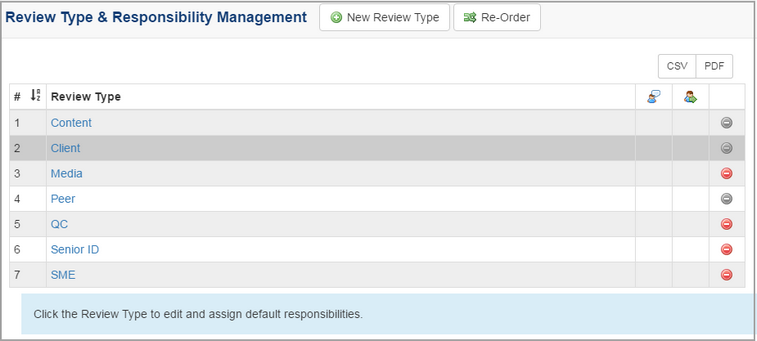
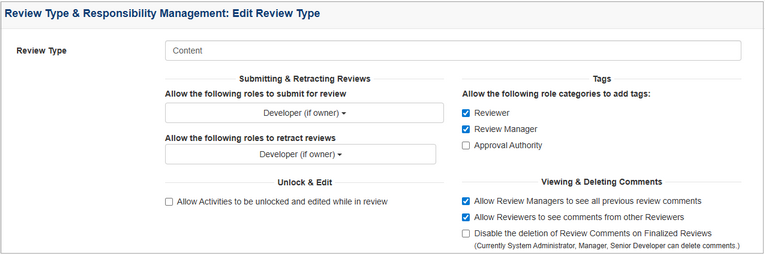
| 3. | Enter the desired name for review type in the Review Type field. |
| 4. | On the Submitting & Retracting Reviews pane, select the desired role(s) from the Allow the following roles to submit for review drop-down menu. |
| 5. | Select the desired role(s) from the Allow the following roles to retract for review drop-down menu. |
| 6. | On the Unlock & Edit pane, click the Allow Activities to be unlocked and edited while in review checkbox to enable the feature, if required. |
| 7. | On the Tags pane, click the checkbox for the desired role(s) to enable the role(s) to add tags. |
| 8. | On the Viewing & Deleting pane, click the checkbox(es) to enable the desired feature(s). |
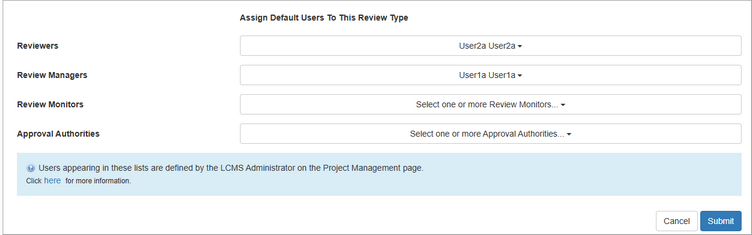
| 9. | Select a pool of one or more users from the drop-down menus for the following roles: Reviewers, Review Managers, Review Monitors, Approval Authorities. Note: The pool of users set at this level will become the default for each Activity, but a subset of these users can then be assigned to the individual Activity. |
| 10. | Click the Submit button and the new review type will be added to the list of options available when setting the review type in an activity. |
|


