|
When TDM Integration is enabled, users can manage teaching points associations to screens at the topic and activity level.
| 1. | On the Activity screen, click TDM Integration from the Additional Options menu. |
| 2. | The TDM Integration screen will open. Note: If a training document is associated with the Activity, the pertaining information (course level statements) displays in the Statements associated with this Activity field. Click the Link to TDM Course button to modify the information or to add new statements. |
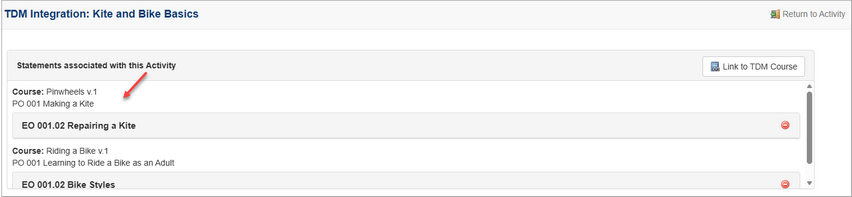
| 3. | If no training document has been associated with the Activity, the Statements associated with this Activity field is blank. Click the Link to TDM Course button to open the Associate a Course and Statement with this activity window. |

| 4. | On the Associate a Course and Statement with this activity window, select the desired course from the Courses drop-down menu. |
| 5. | Select the desired course level from the Course Levels drop-down menu. Note: These are the course levels associated with the course (schema) in TDM. |
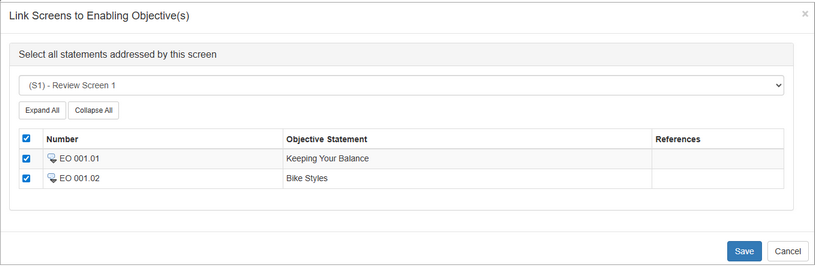
| 6. | On the Screen relationships pane, click the Link Screens to Enabling Objective(s) button to open the Link Screens to Enabling Objectives window. Note: The button and window name is dependent on the course (schema) in TDM. |
| 7. | Select the desired screen to associate from the drop-down menu. |
| 8. | Click the corresponding checkbox to select the desired objective statement(s) from the list. |
| 9. | Click the Save button to save the selection or click the Cancel button to return to to previous screen. |
|


