|
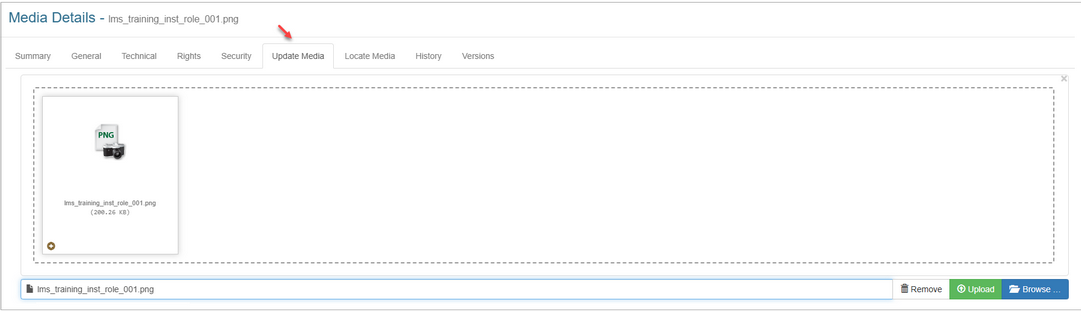
The Update Media tab is where you can update existing media assets.
| 1. | On the Update Media tab, click the Browse button, then locate the media asset you wish to upload. |
| 2. | Click the Upload button to upload the desired media asset. The desired media asset will upload to the Media Library. Note: When the upload is done the Assign Version Information window will open. The version number for the media asset will also increase by the value set in the Project Preferences Versioning tab. |
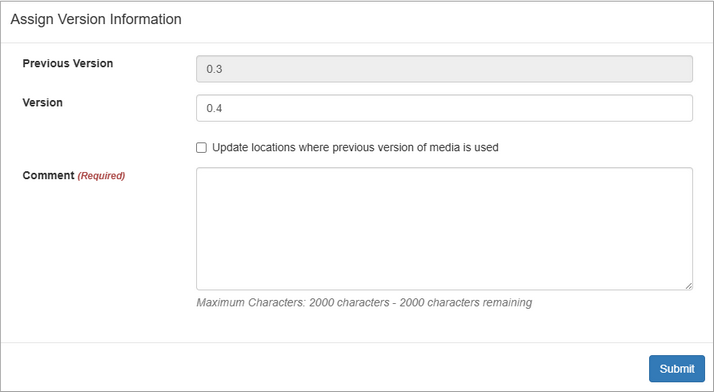
| 3. | On the Assign Version Information window, enter the desired version number in the Version field, if required. Note: This field will be greyed out when the Allow Version Number to be overridden feature is not enabled in the Project Preferences Versioning tab. |
| 4. | Click the Update locations where previous version of media is used checkbox, if required. Note: Enabling this feature will update all previous versions of the media asset to this current version. |
| 5. | Enter the desired reason for the version change in the Comment field, if required. Note: This field is a required field when the Require comment on update feature is enabled in the Project Preferences Versioning tab. It is an optional field when the Require comment on update feature is disabled. |
| 6. | Click the Submit button to open the media asset's Media Details screen. Note: The media asset's Media Details Summary tab will be updated to the new version. |
| 7. | On the Media Details screen, modify the information in the General, Technical, Rights and Security tabs, if required. You may also push this version of the media asset to all locations. See Versions for more information. |
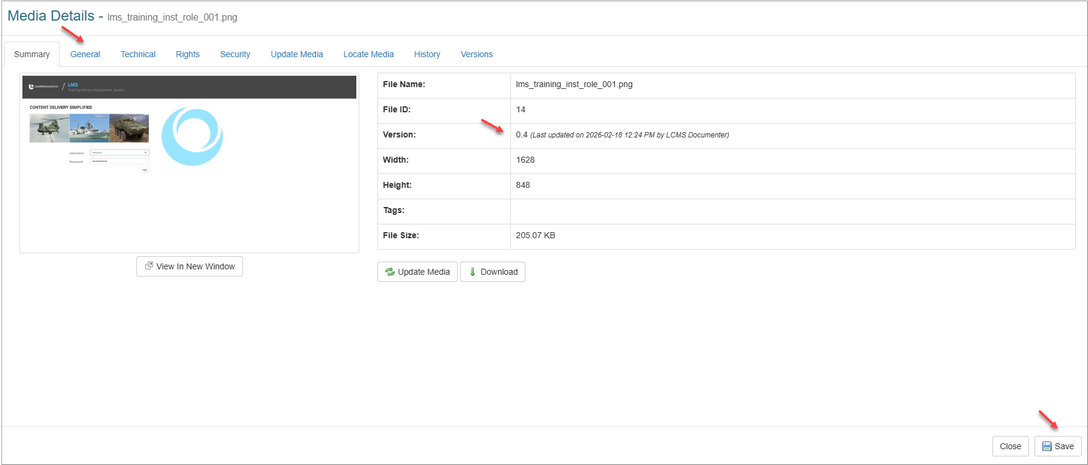
| 8. | Click the Save button the save the changes. |

|


