| 1. | On the LCMS Home screen, click the Role Management link to open the Role Management screen. |
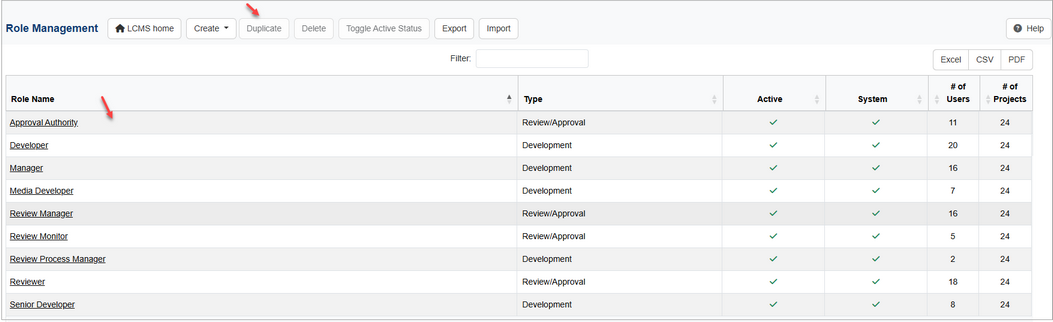
| 2. | On the Role Management screen, click the row for the desired role to duplicate. Ctrl+click to select multiple roles to duplicate. |
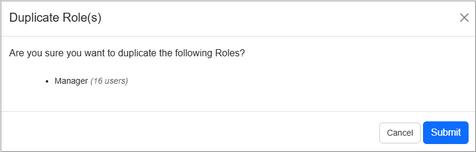
| 3. | Click the Duplicate button to open the Duplicate Role(s) window. |
| 4. | On the Duplicate Role(s) window, click the Submit button to save the duplicated role or click the Cancel button to return to the previous screen. Note: The duplicated role will display in the list with (copy) appended. |
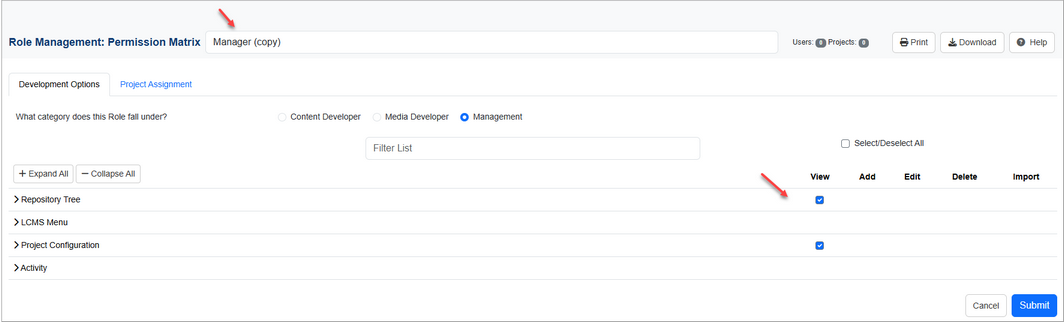
| 5. | Click the duplicate role's link to open the Permission Matrix screen. |

| 6. | On the Permission Matrix screen, enter the desired name for the duplicated role in the Role Name field. |
| 7. | On the Permission Options pane, click the desired category for the role being created, if required in the What category does this Role fall under? field. The category entered in this field is used to support core functionality for the newly created role (i.e. should the role be a content developer role, a media developer role or a management role?). Note: The Review/Approval type role will have review related categories to select. The What category does this Role fall under? field is not available for the Administrative type role. |
| 8. | Select/deselect the desired permissions for the duplicated role as required. |
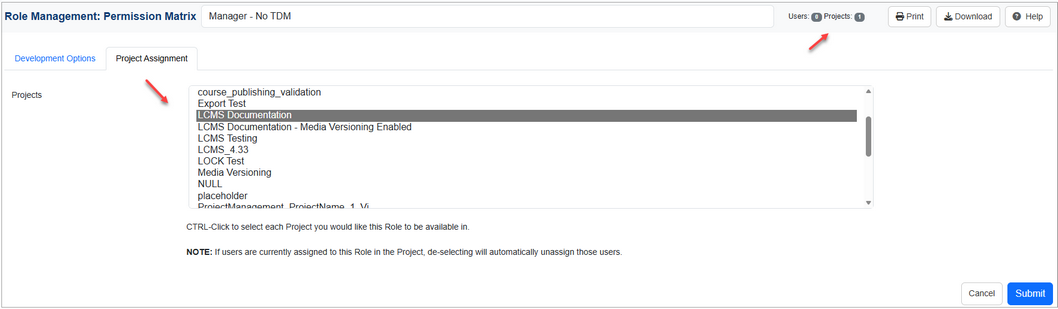
| 9. | Click the Project Assignment tab to open the Projects pane. |
| 10. | On the Project Assignment pane, select the desired project(s) for the new role. Ctrl+click to select multiple projects for the new role. The number of Projects the role is assigned displays in the Projects field at the top of the screen. Note: The number of users the new role is assigned will be zero in the Users field until users are assigned the role. |
| 11. | Click the Submit button to save the changes or click the Cancel button to return to the previous screen without saving. Note: The duplicated role will remain inactive until it is toggled to the active status. See Toggle Active Status for more information. |
|


