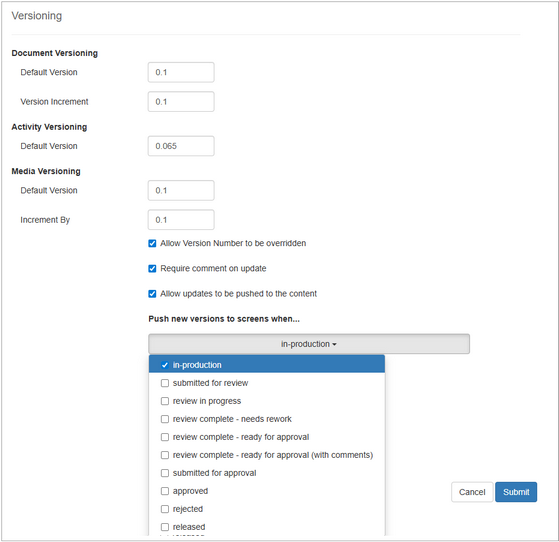
| 1. | On the Application Preferences screen, click Versioning from the Components menu. |
| 2. | Under Document Versioning, enter a value for Default Version to set the initial version number assigned in Document Management. |
| 3. | Under Document Versioning, enter a value for Version Increment to set the increment used for version numbering in Document Management. |
| 4. | Under Activity Versioning, enter a value for Default Version to set the initial version number assigned when creating new activities. |
| 5. | Under Media Versioning, enter a value for Default Version to set the initial version number assigned when creating new media assets. |
| 6. | Under Media Versioning, enter a value for Increment By to set the increment used for version numbering when updating media assets. |
| 7. | Click the Allow Version Number to be overridden checkbox, if required. Note: When enabled, users will be able to modify the calculated version number at the time of versioning. |
| 8. | Click the Require comment on update checkbox to enable this feature, if required. Note: When enabled, users will be required to leave a comment about the change made to the media asset. |
| 9. | Click the Allow updates to be pushed to the content checkbox to enable this feature, if required. Note: When enabled, all instances of the media asset will automatically be updated. |
| 10. | On the Push new versions to screens when...drop-down menu, click the checkbox for the desired activity production status. Multiple activity production statuses may be selected. The new media update will be pushed to the selected activity production status(es). Note: Leave the list unchecked if restrictions for when the new media update may be pushed are not required. |
| 11. | Click the  button to save the changes or click the button to save the changes or click the  button to return to the previous screen without saving. button to return to the previous screen without saving. |
|


